


jquery带翻页动画的电子杂志代码分享 - Web前端
作者:98wpeu发布时间:2026-08-20分类:网页前端技术浏览:133
导读:这是一款基于JQuery实现的带翻页动画的电子杂志,小编有时就在想我们读的纸质课本可不可以都改成电子书,这要是不是会更节省资源呐?记得以前我们有介绍过不少书本翻页的动画,比如这款...
这是一款基于JQuery实现的带翻页动画的电子杂志,小编有时就在想我们读的纸质课本可不可以都改成电子书,这要是不是会更节省资源呐?
记得以前我们有介绍过不少书本翻页的动画,比如这款css3书本翻页动画,制作就非常逼真。今天要分享的这款jQuery书本翻页3D动画功能更加强大,可以支持任意数量页的翻阅,并且也有非常美观的视觉效果。书本的内容支持任意html元素,相当灵活。
运行效果图 --------------------------------查看效果 下载源码------------------------------------
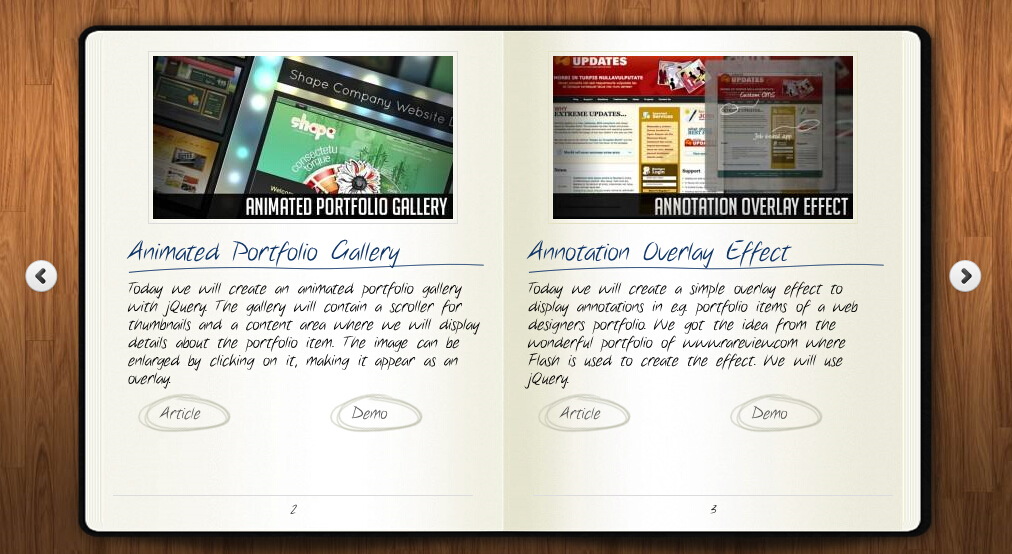
为大家分享的jquery带翻页动画的电子杂志代码如下
<head>
    <title>jquery书本翻页动画效果DemO演示</title>
    <meta http-eqUIv="Content-type" content="text/HTML; charset=UTF-8">
 <script type="text/javascript" src="HTTP://code.JQuery.com/jquery-1.4.4.min.JS"></script>
 <script src="booklet/jquery.Easing.1.3.js" type="text/JavaScript"></script>
 <script src="booklet/jquery.booklet.1.1.0.min.js" type="text/Javascript"></script>
 <link href="booklet/jquery.booklet.1.1.0.CSS" type="text/css" rel="StyleSheet" media="screen" />
 <link rel="stylesheet" href="css/style.css" type="text/css" media="screen"/>
 <script src="cufon/cufon-yui.js" type="text/javascript"></script>
 <script src="cufon/ChunkFive_400.font.js" type="text/javascript"></script>
 <script src="cufon/Note_this_400.font.js" type="text/Javascript"></script>
 <script type="text/javascript">
  Cufon.Replace('h1,p,.b-counter');
  Cufon.replace('.book_wrAPPer a', {hover:true});
  Cufon.replace('.title', {textshadow: '1px 1px #C59471', fontFamily:'ChunkFive'});
  Cufon.replace('.reference a', {textShadow: '1px 1px #C59471', fontFamily:'ChunkFive'});
  Cufon.replace('.loading', {textShadow: '1px 1px #000', fontFamily:'ChunkFive'});
 </script>
  </head>
  <body>


<div style="text-align:center;clear:both">
<script src="/gg_bd_ad_720x90.js" type="text/javascript"></script>
<script src="/follow.js" type="text/javascript"></script>
</div>
 <div class="book_wrapper">
  <a id="next_page_button"></a>
  <a id="PRev_page_button"></a>
  <div id="loading" class="loading">Loading pages...</div>
  <div id="mybook" style="display:none;">
  <div class="b-load">
   <div>
   <img src="images/1.jpg" alt=""/>
   <h1>Slider Gallery</h1>
   <p>This tutorial is about creating a creative gallery with a
    slider for the thumbnAIls. The idea is to have an expanding
    thumbnails area which opens once an album is chosen.
    The thumbnails will scroll to the end and move back to
    the first image. The User can scroll through the thumbnails
    by using the slider controls. When a thumbnail is clicked,
    it moves to the center and the full image preview opens.</p>
   <a href="#" class="article">Article</a>
   <a href="#" class="demo">Demo</a>
   </div>
   <div>
   <img src="images/2.jpg" alt="" />
   <h1>Animated Portfolio Gallery</h1>
   <p>Today we will create an animated portfolio gallery with jQuery.
    The gallery will contain a scroller for thumbnails and a
    content area where we will display details about the portfolio
    item. The image can be enlarged by clicking on it, making
    it Appear as an overlay.</p>
   <a href="#" class="article">Article</a>
   <a href="#" class="demo">Demo</a>
   </div>
   <div>
   <img src="images/3.jpg" alt="" />
   <h1>Annotation Overlay Effect</h1>
   <p>Today we will create a simple overlay effect to display annotations in e.g. portfolio
    items of a WEB designers portfolio. We got the idea from the wonderful
    portfolio of www.rarevIEw.com where FLASH is used to create the
    effect. We will use jQuery.</p>
   <a href="#" class="article">Article</a>
   <a href="#" class="demo">Demo</a>
   </div>
   <div>
   <img src="images/4.jpg" alt="" />
   <h1>Bubbleriffic Image Gallery</h1>
   <p>In this tutorial we will create a bubbly image gallery that
    shows your images in a unique way. The idea is to show the
    thumbnails of albums in a rounded fashion allowing the
    user to scroll them automatically by moving the mouse.
    Clicking on a thumbnail will Zoom in a big circle and
    the full image which will be automatically resized to
    fit into the screen.</p>
   <a href="#" class="article">Article</a>
   <a href="#" class="demo">Demo</a>
   </div>
   <div>
   <img src="images/5.jpg" alt="" />
   <h1>Collapsing Site Navigation</h1>
   <p>Today we will create a collapsing menu that contains vertical
    navigation bars and a slide out content area. When hovering
    over a menu item, an image slides down from the top and a
    submenu slides up from the bottom. Clicking on one of the
    submenu items will make the whole menu collapse like a card
    deck and the respective content area will slide out.</p>
   <a href="#" class="article">Article</a>
   <a href="#" class="demo">Demo</a>
   </div>
   <div>
   <img src="images/6.jpg" alt="" />
   <h1>custom Animation Banner</h1>
   <p>In today's tutorial we will be creating a custom animation banner with jQuery.
    The idea is to have different elements in a banner that will
    animate step-wise in a custom way.</p>
   <p>We will be using the jQuery Easing Plugin and the jQuery 2D
    transform Plugin to create some nifty animations.</p>
   <a href="#" class="article">Article</a>
   <a href="#" class="demo">Demo</a>
   </div>
   <div>
   <img src="images/7.jpg" alt="" />
   <h1>Full Page Image Gallery</h1>
   <p>In this tutorial we are going to create a stunning full page
    gallery with scrollable thumbnails and a scrollable full
    screen preview. The idea is to have a thumbnails bar at
    the bottom of the page that scrolls automatically when
    the user moves the mouse. When a thumbnail is clicked,
    it moves to the center of the page and the full screen
    image is loaded in the background.</p>
   <a href="#" class="article">Article</a>
   <a href="#" class="demo">Demo</a>
   </div>
   <div>
   <img src="images/8.jpg" alt="" />
   <h1>Hover Slide Effect</h1>
   <p>Today we will create a neat effect with some images using
    jQuery. The main idea is to have an image area with several
    images that slide out when we hover over them, revealing
    other images. The sliding effect will be ranDOM, i.e.
    the images will slide to the top or bottom, left or
    right, fading out or not. When we click on any area,
    all areas will slide their images out.</p>
   <a href="#" class="article">Article</a>
   <a href="#" class="demo">Demo</a>
   </div>
   <div>
   <img src="images/9.jpg" alt="" />
   <h1>Merging Image Boxes</h1>
   <p>Today we will show you a nice effect for images with jQuery.
    The idea is to have a set of rotated thumbnails that,
    once clicked, animate to FORM the selected image.
    You can navigate through the images with previous
    and next buttons and when the big image gets clicked
    it will scatter into the little box shaped thumbnails again.</p>
   <a href="#" class="article">Article</a>
   <a href="#" class="demo">Demo</a>
   </div>
   <div>
   <img src="images/10.jpg" alt="" />
   <h1>Compact News Previewer</h1>
   <p>Today we will create a news previewer that let's you
    show your latest articles or news in a compact way.
    The news previewer will show some list of articles
    on the left side and the preview of the article with a
    longer description on the right. Once a news on the left
    is clicked, the preview will slide in.</p>
   <a href="#" class="article">Article</a>
   <a href="#" class="demo">Demo</a>
   </div>
   <div>
   <img src="images/11.jpg" alt="" />
   <h1>Overlay Effect Menu</h1>
   <p>In this tutorial we are going to create a simple menu
    that will stand out once we hover over it by covering
    everything except the menu with a dark overlay.
    The menu will stay white and a submenu area will
    expand. We will create this effect using jQuery.</p>
   <a href="#" class="article">Article</a>
   <a href="#" class="demo">Demo</a>
   </div>
   <div>
   <img src="images/12.jpg" alt="" />
   <h1>Polaroid Photobar Gallery</h1>
   <p>In this tutorial we are going to create an image gallery
    with a Polaroid look. We will have albums that will expand
    to sets of slightly rotated thumbnails that pop out on hover.
    The full image will slide in from the bottom once a thumbnail
    is clicked. In the full image view the user can navigate
    through the pictures or simply choose another thumbnail
    to be displayed.</p>
   <a href="#" class="article">Article</a>
   <a href="#" class="demo">Demo</a>
   </div>
   <div>
   <img src="images/13.jpg" alt="" />
   <h1>Pull Out Content Panel</h1>
   <p>In this tutorial we will create a content panel that
    slides out at a predefined scroll position. It will
    reveal a teaser with related content and it can be
    expanded to full page size to show more. A custom
    slider allows to scroll through many items in the
    panel.</p>
   <a href="#" class="article">Article</a>
   <a href="#" class="demo">Demo</a>
   </div>
   <div>
   <img src="images/14.jpg" alt="" />
   <h1>Thumbnails Navigation Gallery</h1>
   <p>In this tutorial we are going to create an extraordinary
    gallery with scrollable thumbnails that slide out from a
    navigation. We are going to use jQuery and some CSS3
    properties for the style. The main idea is to have a
    menu of albums where each item will reveal a horizontal
    bar with thumbnails when clicked.</p>
   <a href="#" class="article">Article</a>
   <a href="#" class="demo">Demo</a>
   </div>
  </div>
  </div>
 </div>

    <!-- The JavaScript -->

    <script type="text/javascript">
  $(function() {
  var $mybook  = $('#mybook');
  var $BTtn_next = $('#next_page_button');
  var $bttn_prev = $('#prev_page_button');
  var $loading = $('#loading');
  var $mybook_images = $mybook.find('img');
  var cnt_images = $mybook_images.length;
  var loaded  = 0;
  //preload all the images in the book,
  //and then call the booklet plugin

  $mybook_images.each(function(){
   var $img = $(this);
   var source = $img.attr('src');
   $('<img/>').load(function(){
   ++loaded;
   if(loaded == cnt_images){
    $loading.hide();
    $bttn_next.show();
    $bttn_prev.show();
    $mybook.show().booklet({
    name:        null,              // name of the booklet to display in the document title bar
    width:       800,               // container width
    height:       500,               // container height
    speed:       600,               // speed of the transition between pages
    direction:     'LTR',              // direction of the overall content organization, default LTR, left to right, can be RTL for languages which read right to left
    startingPage:    0,                // index of the first page to be displayed
    easing:       'easeInOutQuad',         // easing method for complete transition
    easeIn:       'easeInQuad',          // easing method for first half of transition
    eaSEOut:      'easeoutQuad',          // easing method for second half of transition

    closed:       true,              // start with the book "closed", will add empty pages to beginning and end of book
    closedFrontTitle:  Null,              // used with "closed", "menu" and "pageselector", determines title of blank starting page
    closedFrontChapter: null,              // used with "closed", "menu" and "chapterSelector", determines chapter name of blank starting page
    closedBackTitle:  null,              // used with "closed", "menu" and "pageSelector", determines chapter name of blank ending page
    closedBackChapter: null,              // used with "closed", "menu" and "chapterSelector", determines chapter name of blank ending page
    covers:       false,              // used with "closed", makes first and last pages into covers, without page numbers (if enabled)

    pagePadding:    10,               // padding for each page wrapper
    pageNumbers:    true,              // display page numbers on each page

    hovers:       false,              // enables preview pageturn hover animation, shows a small preview of previous or next page on hover
    overlays:      false,              // enables navigation using a page sized overlay, when enabled links inside the content will not be clickable
    tabs:        false,              // adds TABs along the top of the pages
    tabWidth:      60,               // set the width of the tabs
    tabHeight:     20,               // set the height of the tabs
    arrows:       false,              // adds arrows overlayed over the book Edges
    cursor:       'pointer',            // Cursor css setting for side bar areas

    hash:        false,              // enables navigation using a hash string, ex: #/page/1 for page 1, will affect all booklets with 'hash' enabled
    keyboard:      true,              // enables navigation with arrow keys (left: previous, right: next)
    next:        $bttn_next,       // selector for element to use as click trigger for next page
    prev:        $bttn_prev,       // selector for element to use as click trigger for previous page

    menu:        null,              // selector for element to use as the menu area, required for 'pageSelector'
    pageSelector:    false,              // enables navigation with a dropdown menu of pages, requires 'menu'
    chapterSelector:  false,              // enables navigation with a dropdown menu of chapters, determined by the "rel" attribute, requires 'menu'

    shadows:      true,              // display shadows on page animations
    shadowTopFwdWidth: 166,               // shadow width for top forward anim
    shadowTopBackWidth: 166,               // shadow width for top back anim
    shadowBtmWidth:   50,               // shadow width for bottom shadow

    before:       function(){},          // callback invoked before each page turn animation
    after:       function(){}           // callback invoked after each page turn animation
    });
    Cufon.refresh();
   }
   }).attr('src',source);
  });

  });
    </script>

  </body>
</html>
希望本文所述对大家的jQuery程序设计有所帮助。
相关推荐
- jQuery EasyUI API 中文文档 - ProgressBar 进度条 - Web前端
- jQuery最佳实践完整篇 - Web前端
- 让你的CSS像Jquery一样做筛选的实现方法 - Web前端
- 基于jquery的浮动层效果代码 - Web前端
- 基于JQuery实现CheckBox全选全不选 - Web前端
- jQuery实战之仿淘宝商城左侧导航效果 - Web前端
- jQuery-Tools-overlay 使用介绍 - Web前端
- 基于jquery的从一个页面跳转到另一个页面的指定位置的实现代码(带平滑移动的效果) - Web前端
- Jquery使用Firefox FireBug插件调试Ajax步骤讲解 - Web前端
- jQuery实用函数用法总结 - Web前端
- 网页前端技术排行
-
- 1[Web前端]用javascript实现默认图片替代未显示的图片 - Web前端
- 2分析Iconfont-阿里巴巴矢量常用图标库 - Web前端
- 3jQuery实例教程:制作网页中可折叠的面板 - Web前端
- 4【第六章】Foundation之按钮和下拉功能 - Web前端
- 5基于jquery的滚动条滚动固定div(附演示下载) - Web前端
- 6jQuery编写widget的一些技巧分享 - Web前端
- 7在Mac/PC上远程调试iPhone/iPad上的网页 - Web前端
- 8分享精心挑选的12款优秀jQuery Ajax分页插件和教程 - Web前端
- 9jQuery实现鼠标移到元素上动态提示消息框效果 - Web前端
- 最近发表
-
- WordPress随机显示特色图片插件:Random Post Thumbnails
- KeePass实现Chrome浏览器自动填充密码方法一
- LNMP一键包nginx 301强制跳转到https教程
- KeePass实现Chrome浏览器自动填充密码方法二
- #建站# 免费的VPS管理软件Xshell8/Xftp8中文版下载
- 使用Xshell 8连接VPS教程_电脑登录vps的方法
- WordPress评论界面添加烟花????效果
- 不同浏览器书签同步方案:坚果云+Floccus_详细使用教程
- iOS端KeePassXC客户端APP:Strongbox Password Safe
- 给WordPress评论中的Gravatar头像图片添加ALT属性