


JQueryEasyUI datagrid框架的基本使用 - Web前端
作者:98wpeu发布时间:2026-06-26分类:网页前端技术浏览:179
今天说说这个datagrid框架的基本使用,这个框架一直以来都是大家比较头疼的框架,尤其是json数据的拼接,后台前台都很重要,使用这个框架,最重要的是仔细:
无需废话,上代码了:
复制代码 代码如下:
<link href="JQuery-easyUI-1.3.2/themes/default/easyui.CSS" rel="StyleSheet" type="text/css" />
<!--easyui最全的样式包也可单独引用你想使用的样式包-->
<link href="jQuery-easyui-1.3.2/themes/icon.css" rel="stylesheet" type="text/css" />
<!--easyui自带图片样式包,也可自行添加-->
<script src="jquery-easyui-1.3.2/jquery-1.8.0.min.JS" type="text/javascript"></script>
<!--我使用的是easyui 1.3.2,基于JQuery-1.8.0-->
<script src="jquery-easyui-1.3.2/jquery.easyui.min.js" type="text/JavaScript"></script>
<!--easyui的js包-->
<script src="jquery-easyui-1.3.2/locale/easyui-lang-zh_CN.js" type="text/Javascript"></script>
<!--easyui的中文语言包,默认是英文-->
</head>
<body id="layoutbody" class="easyui-layout">
<div data-options="region:'north',title:'North Title',split:true" style="height: 100px;">
</div>
<div data-options="region:'south',title:'South Title',split:true" style="height: 100px;">
</div>
<div data-options="region:'east',iconCls:'icon-reload',title:'East',split:true" style="width: 100px;">
</div>
<div data-options="region:'west',title:'West',split:true" style="width: 100px;">
</div>
<div data-options="region:'center',title:'center title'" href="htmlPage.htm" style="padding: 5px;
background: #eee; overflow: hidden;"><!--这里指向了一个htm页-->
</div>
</body>
</HTML>
HTMLPage.htm代码:
复制代码 代码如下:
<script type="text/javascript" charst="utf-8">
//因为layout框架指向href时,只取html页面body中间的部分,所以该页面这样写即可
//有datagrid包含属性较多,所以尽量使用js的方式初始化datagrid框架
$(function () {
$("#dg").datagrid({
url: "getJSON.ashx", //指向一个一般处理程序或者一个控制器,返回数据要求是Json格式,直接赋值Json格式数据也可,我以demo中自带的Json数据为例,就不写后台代码了,但是我会说下后台返回的注意事项
title: "数据展示表格",
iconCls: "icon-add",
fitColumns: false, //设置为true将自动使列适应表格宽度以防止出现水平滚动,false则自动匹配大小
//toolbar设置表格顶部的工具栏,以数组形式设置
idField: 'id', //标识列,一般设为id,可能会区分大小写,大家注意一下
loadMsg: "正在努力为您加载数据", //加载数据时向用户展示的语句
pagination: true, //显示最下端的分页工具栏
rownumbers: true, //显示行数 1,2,3,4...
pageSize: 10, //读取分页条数,即向后台读取数据时传过去的值
pagelist: [10, 20, 30], //可以调整每页显示的数据,即调整pageSize每次向后台请求数据时的数据
//由于datagrid的属性过多,我就不每个都介绍了,如有需要,可以看它的API
sortName: "name", //初始化表格时依据的排序 字段 必须和数据库中的字段名称相同
sortOrder: "asc", //正序
columns: [[
{ fIEld: 'code', title: 'Code', width: 100 },
{ field: 'name', title: 'Name', width: 100 ,sortable:true},//sortable:true点击该列的时候可以改变升降序
{ field: 'addr', title: 'addr', width: 100,
//这里可以添加这样一个方法,使其显示数据得到改变
// FORMatter: function (value, row, index) {
// if (value == "0") {
// return "普通角色";
// } else {
// return "特殊角色";
// }
// }
}
]]//这里之所以有两个方括号,是因为可以做成水晶报表形式,具体可看demo
});
});
</script>
<div id="tt" class="easyui-TABs" style="width: 500px; height: 250px;" fit="true"
border="false">
<div title="Tab1" style="padding: 20px;" border="false">
<table id="dg">
</table>
</div>
</div>
Json格式数据一定要是双引号的,单引号无法显示数据哦;
数据格式如下:
复制代码 代码如下:
{
"total":239,
"rows":[
{"code":"001","name":"Name 1","addr":"Address 11","col4":"col4 data"},
{"code":"002","name":"Name 2","addr":"Address 13","col4":"col4 data"},
{"code":"003","name":"Name 3","addr":"Address 87","col4":"col4 data"},
{"code":"004","name":"Name 4","addr":"Address 63","col4":"col4 data"},
{"code":"005","name":"Name 5","addr":"Address 45","col4":"col4 data"},
{"code":"006","name":"Name 6","addr":"Address 16","col4":"col4 data"},
{"code":"007","name":"Name 7","addr":"Address 27","col4":"col4 data"},
{"code":"008","name":"Name 8","addr":"Address 81","col4":"col4 data"},
{"code":"009","name":"Name 9","addr":"Address 69","col4":"col4 data"},
{"code":"010","name":"Name 10","addr":"Address 78","col4":"col4 data"}
]
}
这里呢,后台传递数据很重要:
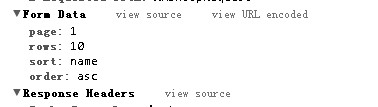
注意:表格post或者get回来的请求中
page:3 代表page为key,然后选择的当前页码为3
rows:10 代表一页的大小为10
后台返回的数据的格式为:{total:'',rows:[{},{}]}
只要包含了总数tatol字段,rows是具体的行数
例如:
asp.netMVC 例子:
public JsonResult GetAllUserInfos()
{
int pageSize = 5;
int pageIndex = 1;
int.TryParse(this.Request["page"], out pageIndex);
int.TryParse(this.Request["rows"], out pageSize);
pageSize = pageSize <= 0 ? 5 : pageSize;
pageIndex = pageIndex < 1 ? 1 : pageIndex;
var temp = db.UserInfo
.OrderBy(u=>u.Sort)
.Skip<UserInfo>((pageIndex-1)*pageSize)
.Take<UserInfo>(pageSize)
.ToList<UserInfo>();
Hashtable ht = new Hashtable();
ht["total"] = db.UserInfo.Count();
ht["rows"] = temp;
return Json(ht);
}
Asp.Net WEBform 例子:
public voidPRocessRequest(httpContext context)
{
context.Response.ContentType = "text/plAIn";
var strWebName = context.Request["WebName"] ?? string.Empty;
var GoodsNo = context.Request["GoodsNo"] ?? String.Empty;
int categoryId = 0;
int pageIndex = 1;
int pageSize = 10;
int.TryParse(context.Request["rows"], out pageSize);
int.TryParse(context.Request["page"], out pageIndex);
decimal priceLeft = 0;
decimal priceRight = 1000000;
int goodsStatus = 0;
decimal.TryParse(context.Request["PriceLeft"], out priceLeft);
decimal.TryParse(context.Request["PriceRight"], out priceRight);
int.TryParse(context.Request["CategoryId"], out categoryId);
int.TryParse(context.Request["GoodsStatus"], out goodsStatus);
var goodsQueryParamter = new GoodsQueryParamter();
goodsQueryParamter.GoodsStatus = (model.Goodsmodel.GoodsStatusEnum)goodsStatus;
var ds = goodsservice.GetGoodsList(goodsQueryParamter);
string json = string.Empty;
if (ds != null && ds.Tables.Count > 0)
{
System.Text.StringBuilder rowJson = new System.Text.StringBuilder();
int colLen = ds.Tables[0].Columns.Count;
DataColumnCollection col = ds.Tables[0].Columns;
forEach (DataRow row in ds.Tables[0].Rows)
{
System.Text.StringBuilder colJson = new System.Text.StringBuilder();
rowJson.append("{");
for (int i = 0; i < colLen; i++)
{
colJson.APPend("\"" + col[i].ColumnName + "\":\"" + row[i].toString() + "\",");
}
rowJson.append(colJson.ToString().TrimEnd(','));
rowJson.Append("},");
}
json = "{\"total\":" + ds.Tables[0].Rows[0]["sumGoods"] + ",\"rows\":[" + rowJson.ToString().TrimEnd(',') + "]}";
}
context.Response.Write(json);
}
ASP.Net中有一个类也可以序列化Json格式数据;
相关推荐
- jQuery Tab插件 用于在Tab中显示iframe,附源码和详细说明 - Web前端
- jQuery 瀑布流 浮动布局(一)(延迟AJAX加载图片) - Web前端
- 初窥JQuery(二) 事件机制(1) - Web前端
- 基于JQUERY的两个ListBox子项互相调整的实现代码 - Web前端
- jQuery Tools tab(幻灯片) - Web前端
- 锋利的jQuery 要点归纳(三) jQuery中的事件和动画(上:事件篇) - Web前端
- Jquery ThickBox插件使用心得(不建议使用) - Web前端
- 基于jquery的兼容各种浏览器的iframe自适应高度的脚本 - Web前端
- jquery validation插件表单验证的一个例子 - Web前端
- jQuery应用开发技巧续篇 - Web前端
- 网页前端技术排行
-
- 1[Web前端]用javascript实现默认图片替代未显示的图片 - Web前端
- 2分析Iconfont-阿里巴巴矢量常用图标库 - Web前端
- 3jQuery实例教程:制作网页中可折叠的面板 - Web前端
- 4【第六章】Foundation之按钮和下拉功能 - Web前端
- 5基于jquery的滚动条滚动固定div(附演示下载) - Web前端
- 6jQuery编写widget的一些技巧分享 - Web前端
- 7分享精心挑选的12款优秀jQuery Ajax分页插件和教程 - Web前端
- 8jQuery实现鼠标移到元素上动态提示消息框效果 - Web前端
- 9在Mac/PC上远程调试iPhone/iPad上的网页 - Web前端
- 最近发表
-
- WordPress随机显示特色图片插件:Random Post Thumbnails
- KeePass实现Chrome浏览器自动填充密码方法一
- LNMP一键包nginx 301强制跳转到https教程
- KeePass实现Chrome浏览器自动填充密码方法二
- #建站# 免费的VPS管理软件Xshell8/Xftp8中文版下载
- 使用Xshell 8连接VPS教程_电脑登录vps的方法
- WordPress评论界面添加烟花????效果
- 不同浏览器书签同步方案:坚果云+Floccus_详细使用教程
- iOS端KeePassXC客户端APP:Strongbox Password Safe
- 给WordPress评论中的Gravatar头像图片添加ALT属性