


ASP.NET jQuery 实例7 通过jQuery来获取DropDownList的Text/Value属性值 - Web前端
作者:98wpeu发布时间:2026-06-26分类:网页前端技术浏览:190
导读:界面代码:复制代码代码如下:<FORMid="form1"runat="server"><divalign="center"><fiel...
界面代码:
复制代码 代码如下:
<FORM id="form1" runat="server">
<div align="center">
<fieldset style="width: 400px; height: 80px;">
<p>
选择颜色:</p>
<asp:DropDownlist ID="ddlcolor" runat="server">
<asp:ListItemtext="--- 请选择 ---" value=""></asp:ListItem>
<asp:ListItem Text="红色" Value="1"></asp:ListItem>
<asp:ListItem Text="黄色" Value="2"></asp:ListItem>
<asp:ListItem Text="蓝色" Value="3"></asp:ListItem>
</asp:DropDownList>
</fIEldset>
</div>
<br />
<div align="center" id="message">
</div>
</Form>
脚本代码:
复制代码 代码如下:
<script src="Scripts/JQuery-1.4.1-vsdoc.JS" type="text/javascript"></script>
<script type="text/JavaScript">
$(document).ready(function () {
// 绑定keyup和change事件
$("#<%=ddlColor.clientID %>").bind("keyup change", function () {
if ($(this).val() != "") {
// 这里需要注意,$(this).text()获取的是整个集合的text属性内容,所以需要再过滤下,把选中的项取出来
$("#message").text("Text: " + $(this).find(":selected").text() + "Value: " + $(this).val());
}
else {
$("#message").text("");
}
});
});
</script>
选择一种颜色显示如下:
复制代码 代码如下:
<FORM id="form1" runat="server">
<div align="center">
<fieldset style="width: 400px; height: 80px;">
<p>
选择颜色:</p>
<asp:DropDownlist ID="ddlcolor" runat="server">
<asp:ListItemtext="--- 请选择 ---" value=""></asp:ListItem>
<asp:ListItem Text="红色" Value="1"></asp:ListItem>
<asp:ListItem Text="黄色" Value="2"></asp:ListItem>
<asp:ListItem Text="蓝色" Value="3"></asp:ListItem>
</asp:DropDownList>
</fIEldset>
</div>
<br />
<div align="center" id="message">
</div>
</Form>
脚本代码:
复制代码 代码如下:
<script src="Scripts/JQuery-1.4.1-vsdoc.JS" type="text/javascript"></script>
<script type="text/JavaScript">
$(document).ready(function () {
// 绑定keyup和change事件
$("#<%=ddlColor.clientID %>").bind("keyup change", function () {
if ($(this).val() != "") {
// 这里需要注意,$(this).text()获取的是整个集合的text属性内容,所以需要再过滤下,把选中的项取出来
$("#message").text("Text: " + $(this).find(":selected").text() + "Value: " + $(this).val());
}
else {
$("#message").text("");
}
});
});
</script>
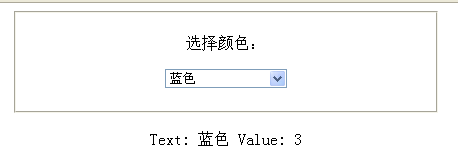
选择一种颜色显示如下:
相关推荐
- Jquery实战_读书笔记1—选择jQuery - Web前端
- Jquery uploadify图片上传插件无法上传的解决方法 - Web前端
- 基于JQuery的类似新浪微博展示信息效果的代码 - Web前端
- 使用jquery.upload.js实现异步上传示例代码 - Web前端
- jQuery 插件仿百度搜索框智能提示(带Value值) - Web前端
- jQuery Tab插件 用于在Tab中显示iframe,附源码和详细说明 - Web前端
- jQuery 瀑布流 浮动布局(一)(延迟AJAX加载图片) - Web前端
- 初窥JQuery(二) 事件机制(1) - Web前端
- 基于JQUERY的两个ListBox子项互相调整的实现代码 - Web前端
- jQuery Tools tab(幻灯片) - Web前端
- 网页前端技术排行
-
- 1[Web前端]用javascript实现默认图片替代未显示的图片 - Web前端
- 2分析Iconfont-阿里巴巴矢量常用图标库 - Web前端
- 3jQuery实例教程:制作网页中可折叠的面板 - Web前端
- 4【第六章】Foundation之按钮和下拉功能 - Web前端
- 5基于jquery的滚动条滚动固定div(附演示下载) - Web前端
- 6jQuery编写widget的一些技巧分享 - Web前端
- 7分享精心挑选的12款优秀jQuery Ajax分页插件和教程 - Web前端
- 8jQuery实现鼠标移到元素上动态提示消息框效果 - Web前端
- 9在Mac/PC上远程调试iPhone/iPad上的网页 - Web前端
- 最近发表
-
- WordPress随机显示特色图片插件:Random Post Thumbnails
- KeePass实现Chrome浏览器自动填充密码方法一
- LNMP一键包nginx 301强制跳转到https教程
- KeePass实现Chrome浏览器自动填充密码方法二
- #建站# 免费的VPS管理软件Xshell8/Xftp8中文版下载
- 使用Xshell 8连接VPS教程_电脑登录vps的方法
- WordPress评论界面添加烟花????效果
- 不同浏览器书签同步方案:坚果云+Floccus_详细使用教程
- iOS端KeePassXC客户端APP:Strongbox Password Safe
- 给WordPress评论中的Gravatar头像图片添加ALT属性